
Feature Details

This page focuses on Sequence, Map, Enzyme, Feature, Primer, and Analysis, and explains how they are useful in actual molecular biology work.

Feature detail title image

Core Features

Explore how editing, analysis, and design work together in real use.

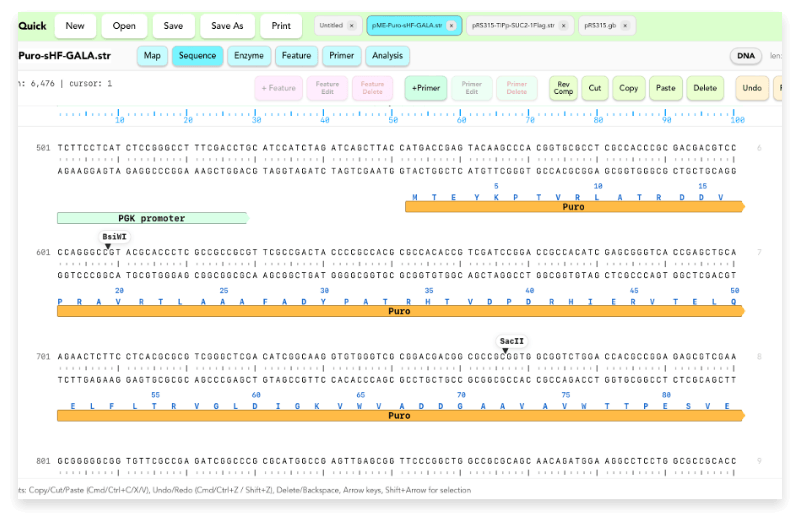
Sequence

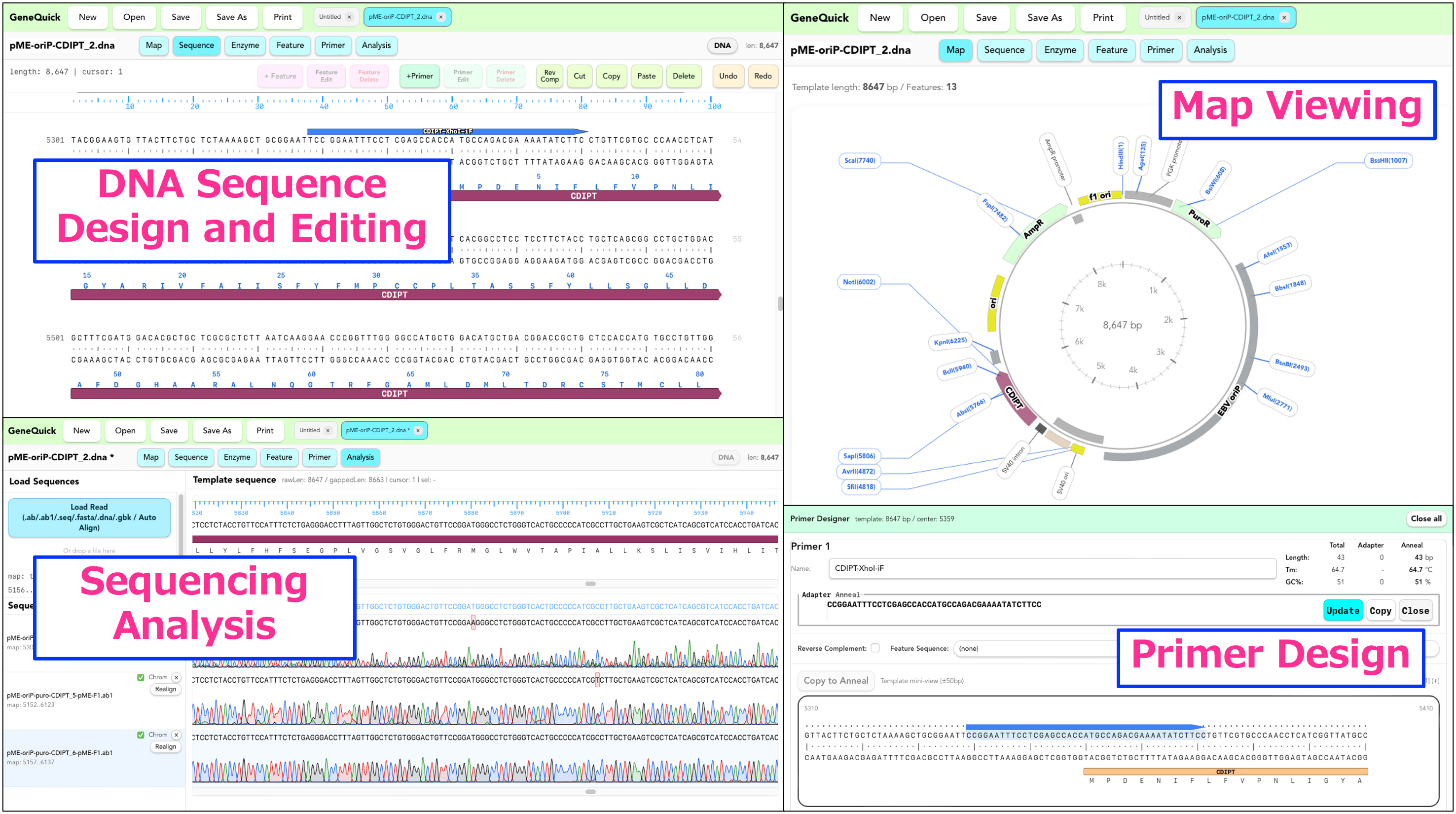
This is the main screen for displaying and editing nucleotide sequences. It supports copy, cut, paste, delete, replace, reverse complement, and Undo / Redo, while also connecting naturally to feature and primer editing.

  • Direct nucleotide sequence editing
  • DNA / RNA mode switching
  • Selecting and editing Features / Primers
  • Amino acid sequence copy support
Sequence screen

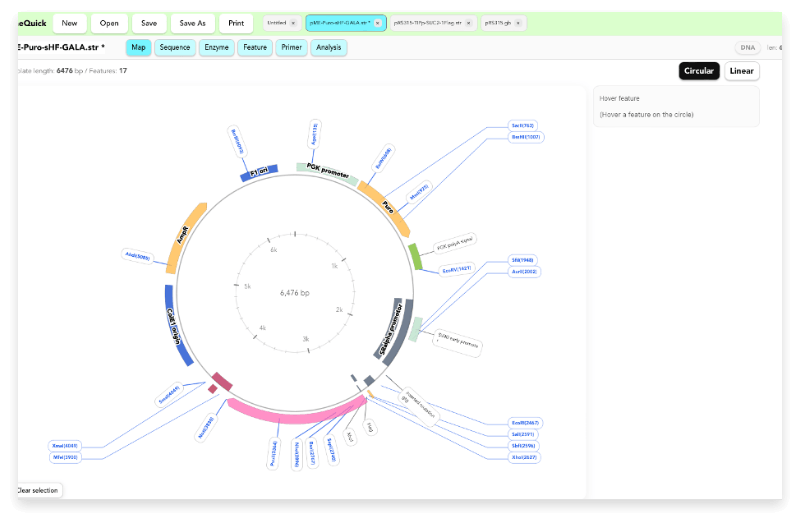
Map

This screen helps you grasp the overall structure of a sequence visually, including the positions of features and restriction enzyme sites. You can also switch between Circular and Linear views.

  • Plasmid map visualization
  • Feature position checking
  • Restriction site display
  • Double-click to jump to the Sequence screen
Map screen

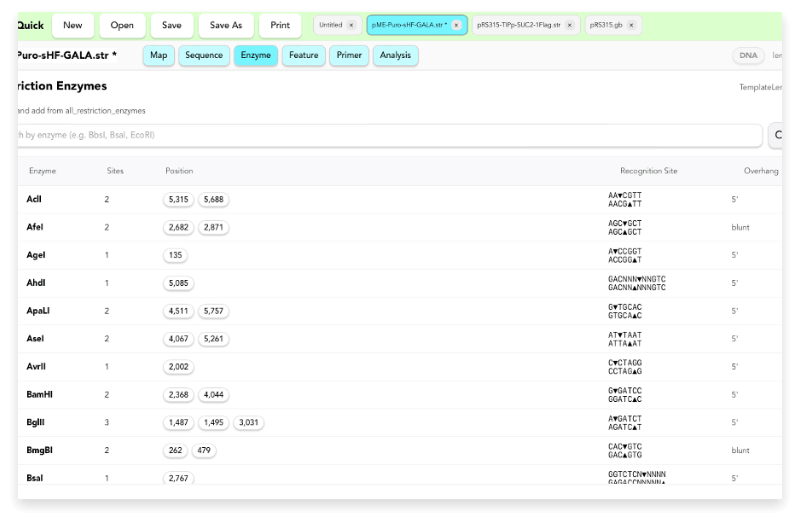
Enzyme

Displays a list of restriction enzymes and lets you check how many sites exist and where they are located. Enzymes you search for and add can also be reflected in the sequence and map views.

  • Enzyme name search and add
  • Display switching
  • Unique site checking
  • Jump to the target position by clicking Position
Enzyme screen

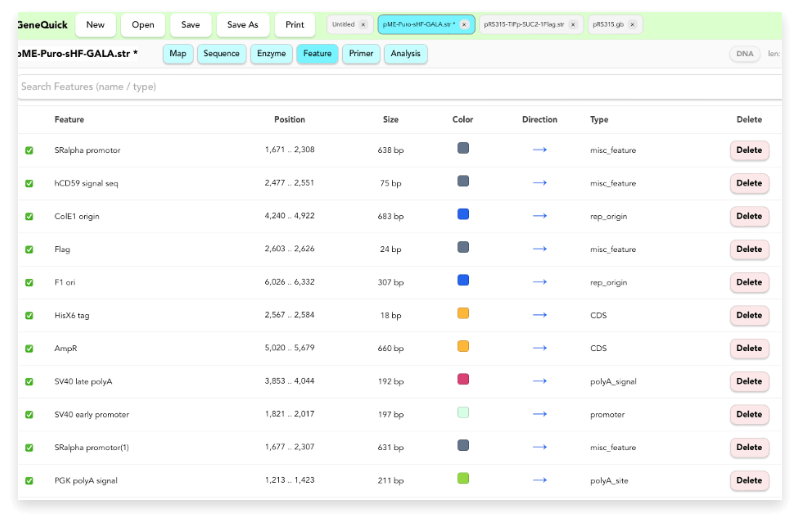
Feature

View existing features in a list and search, edit, or delete them. Features added from the Sequence screen can also be organized more easily here.

  • Feature list display
  • Search function
  • Edit / Delete
  • Jump to the corresponding position
Feature screen

Primer

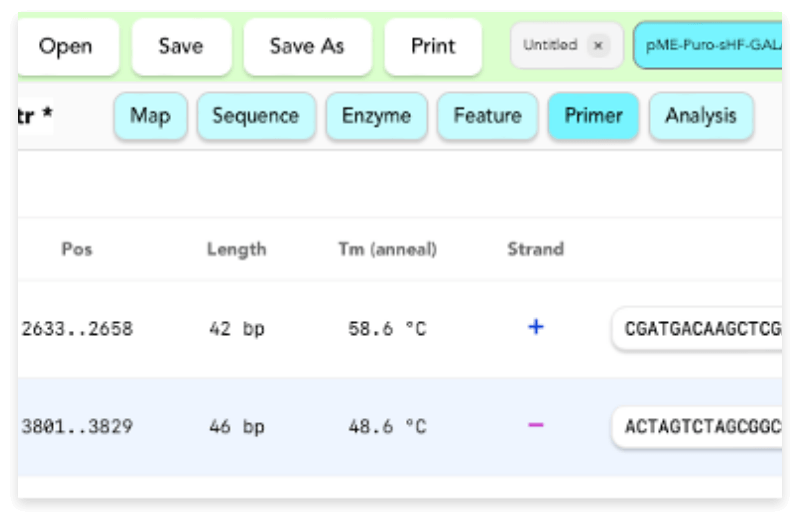
A function for primer list management and primer design. Information you want during design, such as adaptor, anneal, Tm, GC%, reverse complement, and restriction enzyme sequence addition, is gathered into one screen.

  • Edit / Delete existing primers
  • Start design from a selected sequence
  • Reverse complement support
  • Add feature sequences and restriction enzyme sequences
Primer screen

Analysis

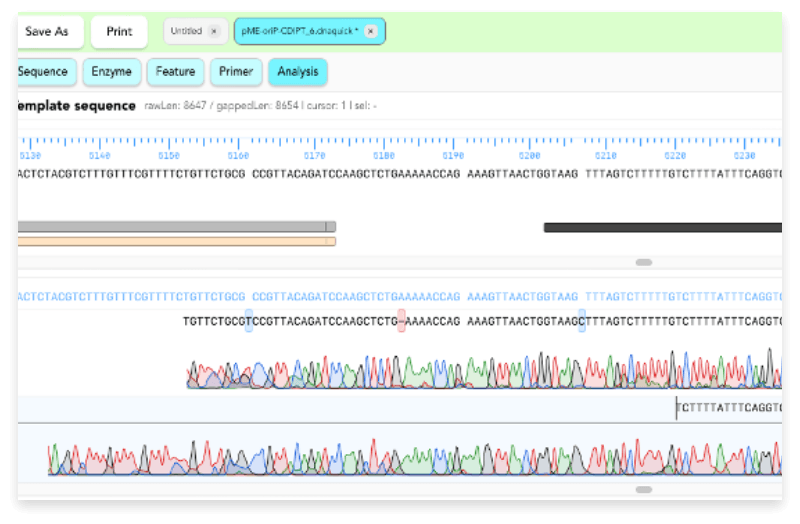
A screen for comparing imported sequences such as .ab1 files with a template sequence. It supports automatic alignment, chromatogram display, mismatch checking, and realignment , and editing when needed.

  • Supports .ab1 / .seq / .fasta / .dna / .gb
  • Automatic alignment
  • Chromatogram display
  • Visual confirmation of mismatches and gaps
Analysis screen

Recommended for Anyone Working in Molecular Biolog

Research workflow
Checking existing plasmids and design DNA sequences
Reviewing restriction enzyme sites
Adding and revising feature annotations
Primer design and sequence management
Reviewing Sanger sequencing results
Handling research data on a personal PC

Save Formats

.geneq

Save your working state as-is

.gb / .gbk

For use with other software

.fasta / .seq

Simple sequence saving

On shared lab computers

It also fits workflows on shared computers in research labs. Because the screen layout is separated by task, it is easy to switch views depending on what you are doing.

On personal laptops

Since it is designed as a personal tool, it is also well suited for people who want to review sequences and design primers on their own PC.

Available in multiple languages

Supports English, Japanese, Chinese, Korean, German, French, Spanish, and Italian, making it easier to use in collaborative research environments.

Comparison Points

Address common concerns before purchase

GeneQuick brings together not only editing, but also map display, restriction enzyme analysis, AB1 analysis, alignment, and primer design in one place.
Yes. Saving in GenBank format makes it easier to open your data in other sequence analysis software.
Yes. It supports .ab1 import, automatic alignment, chromatogram display, difference checking, and re-alignment when needed.

Bring your personal DNA analysis workspace closer to everyday research.

Simplify the routine work used in research by bringing it together in one place.
GeneQuick is a personal molecular biology tool designed for that purpose.

GeneQuick app